
How Can We Help?
Backup & Restore Screen: Overview
The Backup & Restore feature allows you to back up your data or restore a previous backup easily. To access this feature, tap the Backup & Restore option in the Menu, and you will see the screen as illustrated in the visual. Below are detailed descriptions of the options available on this screen:
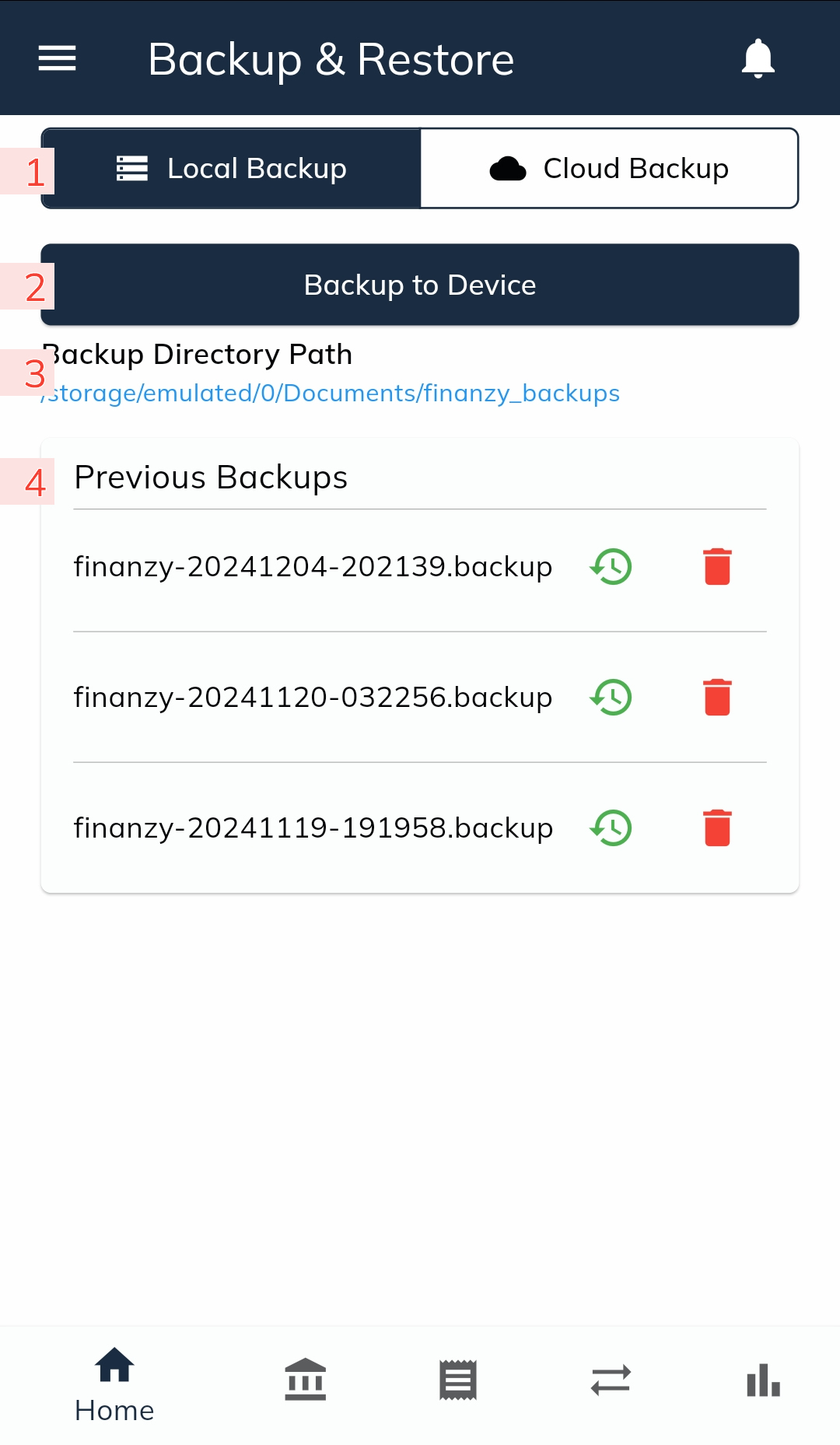
- Backup Location
- Local Backup: When this option is selected, all backup files are stored in your device’s internal storage.
- Note: Ensure that the app has the necessary write permissions in your device settings to create backups locally.
- Cloud Backup: This option allows you to save backups to your Google Drive account. You need to log in to your Google account to use this feature.
- Important: Cloud Backup is a Premium Feature and is available exclusively for Premium users.
- Local Backup: When this option is selected, all backup files are stored in your device’s internal storage.
- Backup Button
- Tap this button to create a backup of all your app data.
- If Local Backup is selected, the backup file will be saved to your device’s storage.
- If Cloud Backup is selected, the backup file will be uploaded to your Google Drive.
- Backup Directory Path(Local Backup Only)
- This field is displayed only when Local Backup is selected.
- It shows the folder path on your device where the backup files are stored.
- Previous Backups
- This section lists all previously created backup files.
- Backup files are named in the format: finanzy-YearMonthDay-HourMinuteSecond (e.g., finanzy-20241218-141530).
- For each backup file, you can:
- Restore: Use the restore button next to the file to reload the data from the selected backup.
- Delete: Use the delete button to remove the backup file permanently from the storage.
With the Backup & Restore feature, you can ensure your financial data is securely saved and easily recoverable, giving you peace of mind and flexibility in managing your records.