
How Can We Help?
Transactions Screen
The Transaction Screen allows you to view all income and expense transactions recorded in the Finanzy app. When you open the Transactions page, you will see a screen similar to the one shown in the visual.
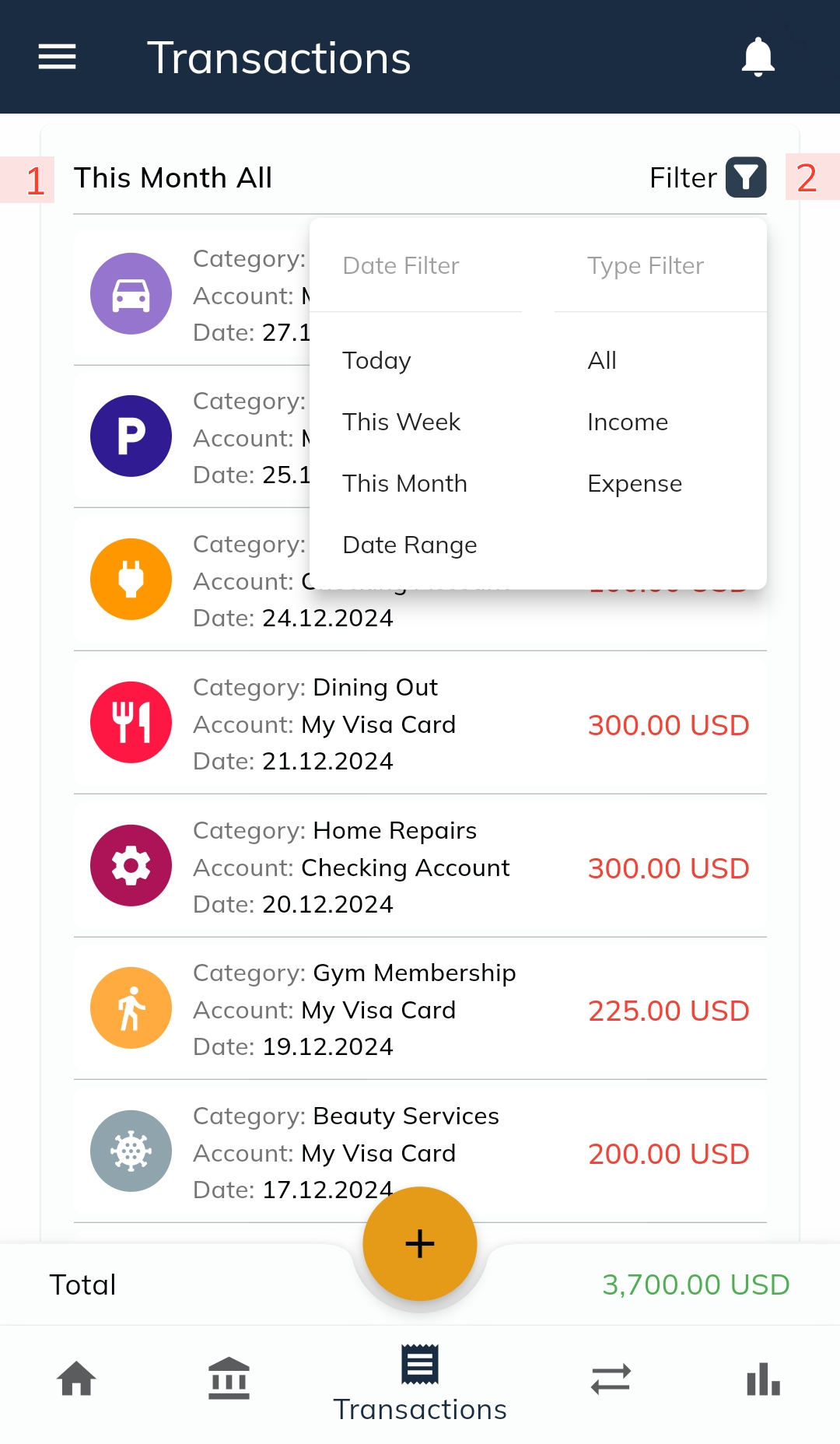
- Default View
- The screen displays transactions for the current month by default.
- The header (marked as 1 in the visual) indicates the date range of the transactions being shown.
- Filtering Transactions
- To view transactions for different date ranges or types, tap the filter button (marked as 2 in the visual). This will open a filtering menu.
- In the filtering menu, you can apply:
- Date Filters: Select a custom date range using the calendar. You can choose a maximum range of 12 months.
- Type Filters: Filter transactions by their type (e.g., Income or Expense).
- Transaction Totals
- The total value of all listed transactions is displayed at the bottom-right corner of the page.
- Total amounts are color-coded for clarity:
- Green: Indicates a positive total (income exceeds expenses).
- Red: Indicates a negative total (expenses exceed income).
- Deleting a Transaction
- To delete a transaction, hold and swipe the transaction to the right.
- After confirming the action on the confirmation screen, the transaction will be deleted.
- Editing a Transaction
- To edit a transaction, hold and swipe the transaction to the left.
- This will open the Transaction Edit Screen, where you can modify the transaction details.
- Note: Only the fields other than Transaction Type and Transaction Category can be edited. These two fields are locked for editing to maintain data accuracy.
- Viewing Transaction Details
- To view additional details of a transaction (e.g., notes or other information), tap on the transaction.
- A small popup window will appear, showing the transaction details.
The Transaction Screen is designed to provide a comprehensive view of your financial activity, along with easy-to-use tools for filtering, editing, and managing your transactions.