
How Can We Help?
Settings Page: Overview
The Settings page allows you to configure the fundamental options of the Finanzy app. Below are explanations for all available options as shown in the visual:
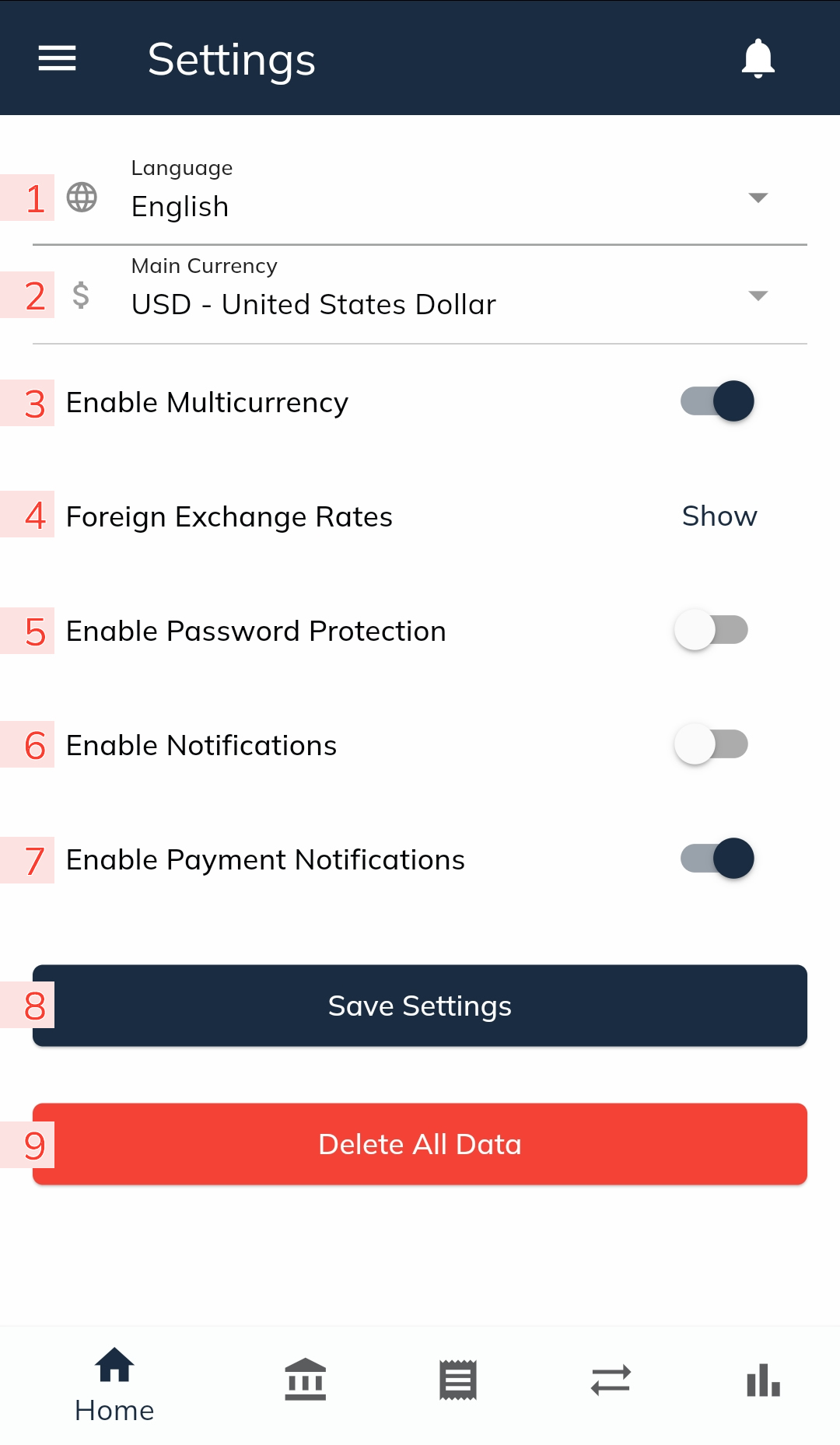
- Language
- Choose the language you want to use in the app. By default, the app uses the Device Language setting.
- Main Currency
- You can change the primary currency selected when the app was first installed.
- Note: If the Multicurrency Mode is enabled, the main currency cannot be changed. This restriction is in place to maintain the accuracy of financial data within the app.
- Enable Multicurrency(Premium Feature)
- Activate this mode to add accounts and perform transactions in currencies other than the main currency.
- Important: Once an account with a secondary currency is added, you cannot disable the multicurrency mode. This restriction ensures the accuracy of your financial data.
- This feature is exclusive to Premium users and requires an upgrade to the Premium version.
- Foreign Exchange Rates
- When Multicurrency Mode is enabled, you can view the exchange rates for converting secondary currencies to the main currency.
- The rates are updated automatically daily, but you also have the option to manually adjust them if needed.
- Enable Password Protection
- Enable this option to secure access to the app with a 6-digit numeric password.
- Enable Notifications
- Allow the app to send general notifications.
- Note: You may also need to enable notifications in your device settings.
- Enable Payment Notifications
- If you only want to receive notifications for upcoming payments, disable the general notifications option (Option 6) and enable this setting.
- You will receive reminders for scheduled income, expenses, and transfers where the Reminder feature is enabled.
- Note: Ensure that notifications are allowed in your device settings to receive these alerts.
- Save Settings
- Click this button to save any changes you make to the settings.
- Delete All Data
- Use this option to delete all data added to the app.
- Warning: If you have not created a backup, all deleted data will be permanently erased and cannot be recovered.