
How Can We Help?
Add Transaction Screen
To record income or expense transactions in the Finanzy app, navigate to the Transactions page using the button at the bottom of the main screen. Tap the (+) button on this page to open the Add Transaction Screen. The screen will look as follows:
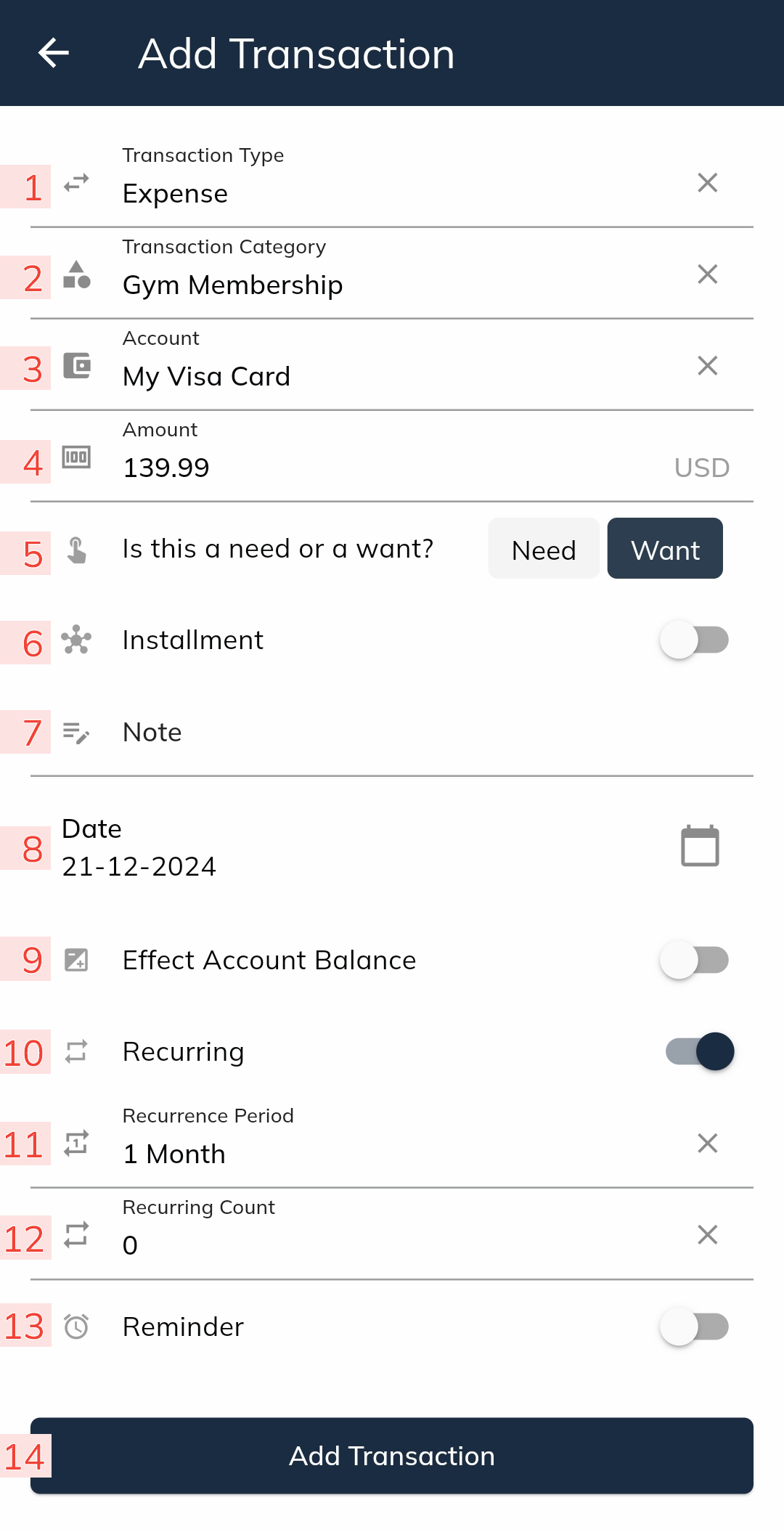
Fields on the Add Transaction Screen
- Transaction Type
- Select the type of transaction you want to add: Income or Expense.
- Transaction Category
- Choose a category for the transaction.
- Only categories relevant to the selected Transaction Type will be displayed.
- Note: If no categories are listed, you need to create one first by navigating to the Category & Budgets page.
- Account
- Select the account for this transaction from the available options.
- Important:
- For Expense transactions, only Cash, Deposit Account, and Credit Card types can be used.
- For Income transactions, only Cash and Deposit Account types can be used.
- Note: If no accounts are displayed, you need to add one first by navigating to the Accounts page.
- Amount
- Enter the transaction amount.
- The currency will automatically match the currency of the selected account in the Account field.
- Need or Want
- This field appears when adding an expense transaction.
- It allows you to classify whether the expense is a “Need” or a “Want.”
- Making a selection in this field is not mandatory.
- The selections will be reflected in the Reports screen, showing a monthly chart comparing “Needs” and “Wants”.
- Installment
- Enable this option if the transaction is an installment-based payment.
- Once enabled, you will be prompted to enter the number of installments. The app will calculate and display the installment amounts.
- Note: Installments can only be enabled for Expense transactions.
- Note
- Add any additional details about the transaction that you want to remember.
- Date
- Select the date of the transaction.
- You can record past transactions by selecting an earlier date. However, the earliest date you can select is the creation date of the account chosen in the Account field. Transactions cannot be added for dates prior to the account’s creation.
- Effect Account Balance
- If you’re recording a future transaction, use this option to decide whether the transaction amount should immediately affect the account’s balance.
- If this option is disabled, the transaction will not impact the account balance until the transaction date arrives.
- Recurring
- Enable this option if the transaction will repeat at regular intervals.
- Recurrence Period
- If Recurring is enabled, specify the interval for the recurring transaction. Options include:
- 1 week
- 2 weeks
- 1 month
- 2 months
- 6 months
- 1 year
- The app will automatically add transactions based on the selected interval. Recurring transactions are created one week in advance.
- If Recurring is enabled, specify the interval for the recurring transaction. Options include:
- Recurring Count
- Enter the number of times the transaction should repeat.
- If you want the transaction to repeat indefinitely until manually stopped, enter 0.
- Reminder
- This option is available only for future or recurring transactions.
- When enabled, the app will send a notification one day before the transaction date as a reminder.
- Note: To receive notifications, ensure notifications are enabled in both the Settings page of the app and your phone’s notification settings.
- Add Transaction Button
- After filling in all required fields, tap this button to save the transaction based on the provided information.
The Add Transaction Screen provides a robust set of features to ensure that your financial records are accurate, customizable, and easy to manage.