
How Can We Help?
Add Account Screen
To add an account in the Finanzy app, tap the Accounts button at the bottom of the main screen. On the Accounts page, tap the (+) button at the bottom to open the Add Account Screen. You will see a screen where you can fill in the account details as described below:
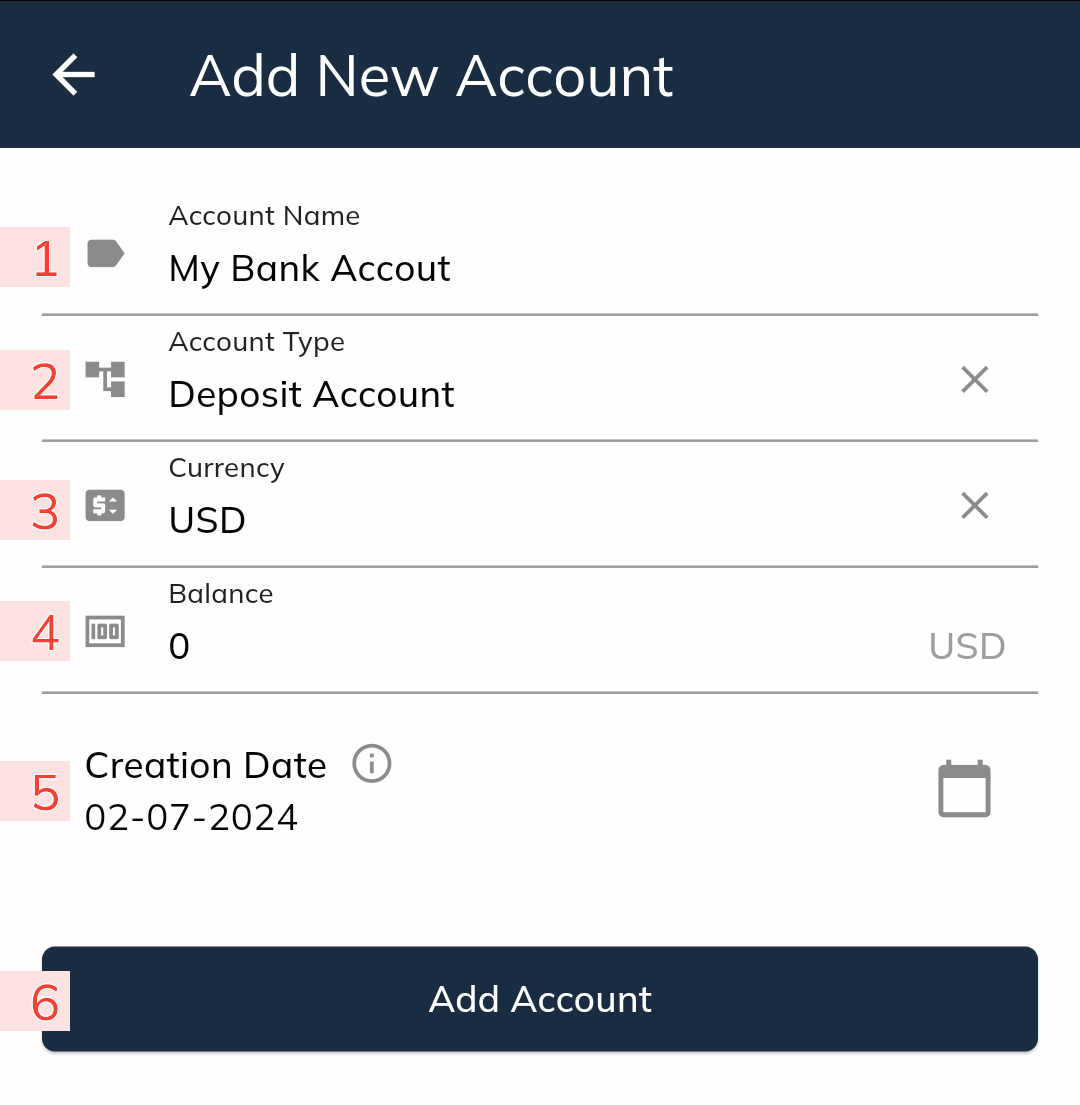
- Account Name
- Enter a name to identify your account. This can be any name of your choice.
- Account Type
- Select one of the following account types offered by the app:
- Cash
- Deposit Account
- Credit Card
- Saving Account
- Loan Account
- Important Information:
- Income transactions can only be recorded with Cash or Deposit Account types.
- Expense transactions can be recorded with Cash, Deposit Account, or Credit Card types.
- Transfer transactions can be recorded with any account type.
- Select one of the following account types offered by the app:
- Currency
- Select the currency for this account.
- Note: To choose a currency other than the main currency, you must enable the Multicurrency Mode, a Premium feature, in the Settings page.
- If Multicurrency Mode is not enabled, the currency will default to the Main Currency and cannot be changed.
- Balance/Debt
- Enter the balance or debt amount as of the account creation date.
- If the selected Account Type is Credit Card or Loan Account, this field will appear as Debt. For these account types, the amount entered will automatically be recorded as debt without the need for a negative (-) sign.
- For other account types, if the account has a negative balance, it should be indicated with a negative (-) sign in the Balance field.
- Enter the balance or debt amount as of the account creation date.
- Creation Date
- Set the creation date for the account.
- Note: Transactions or transfers cannot be added for dates earlier than the creation date set here.
- Add Account Button
- Once all fields are completed, tap this button to save the account.
Important Notes
- To ensure financial data is accurate and consistent, only the Account Name can be edited after the account is created. All other fields cannot be modified once the account is saved.
The Add Account Screen is designed to provide a streamlined process for adding accounts while maintaining the integrity of your financial records.