
How Can We Help?
Category Listing Screen
The Category & Budgets screen allows you to view, edit, and delete categories you’ve created. This page can be accessed through the Category & Budgets section. Below are the features and actions you can perform on this screen:
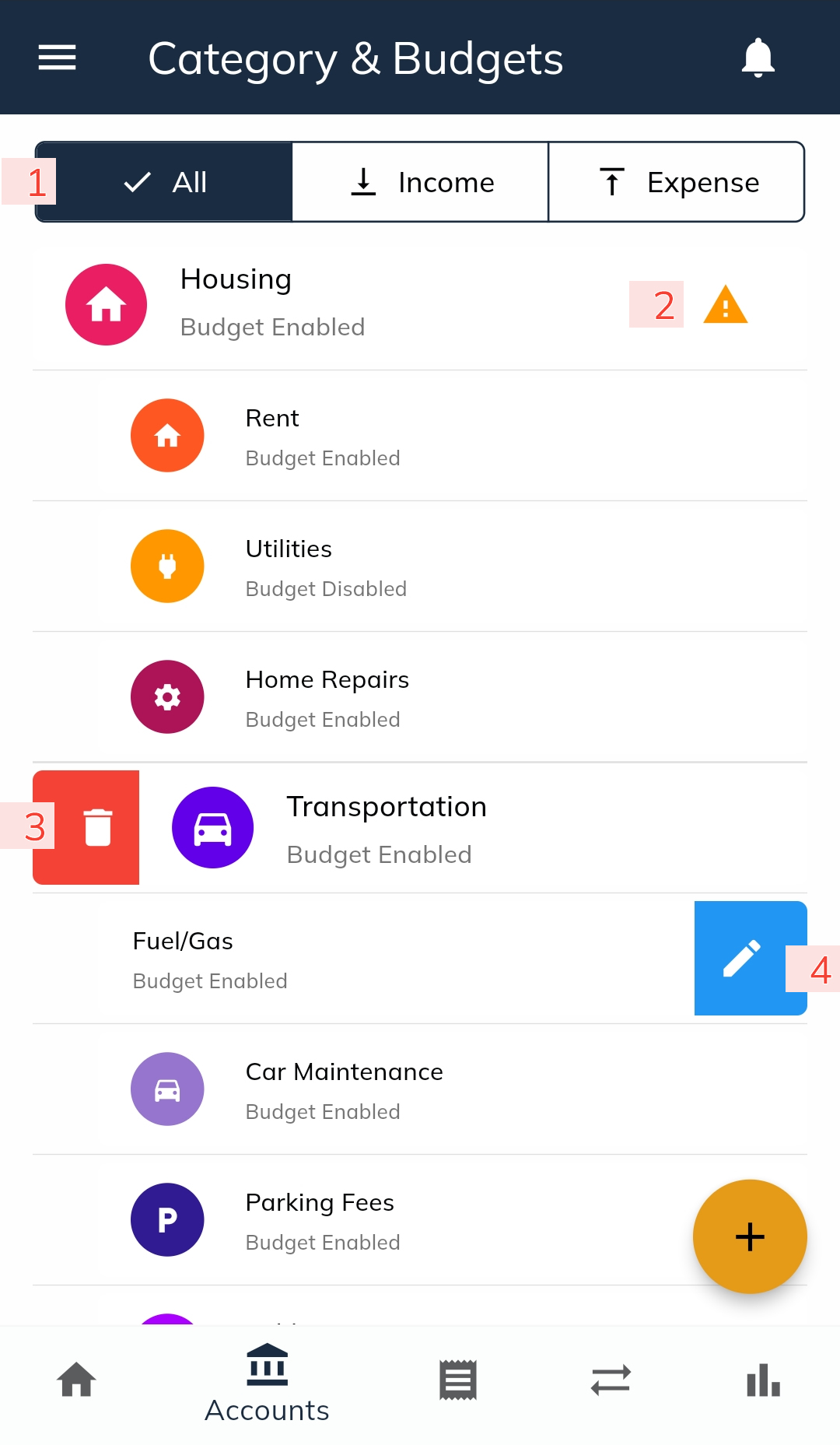
- Filtering
- Use this feature to filter categories based on their type (e.g., Income or Expense).
- Warning Icon for Parent and Subcategory Conflicts(Premium Feature)
- If there is a mismatch between the budget status (enabled or disabled) of a parent category and its subcategories, a warning icon will appear next to the parent category.
- Tap the icon to view detailed information about the conflict.
- Note: Creating subcategories is a Premium-only feature. This option is visible exclusively to Premium users.
- Delete a Category
- To delete a category, swipe the category to the right. The category will be permanently removed from the app.
- Edit a Category or Its Budgets
- To edit a category or modify its budget, swipe the category to the left. This will open the Category Edit Screen, where you can make the necessary changes and save them.
The Category &Budgets screen is a central hub for managing your categories efficiently, offering intuitive tools to help organize your financial data with ease.