
How Can We Help?
Report Export Screen: Overview
The Report Export feature in Finanzy allows you to generate detailed PDF reports based on your income, expenses, and transfer data. This feature is a Premium-only option, meaning you must upgrade to a Premium account to use it. The Report Export screen is organized as follows:
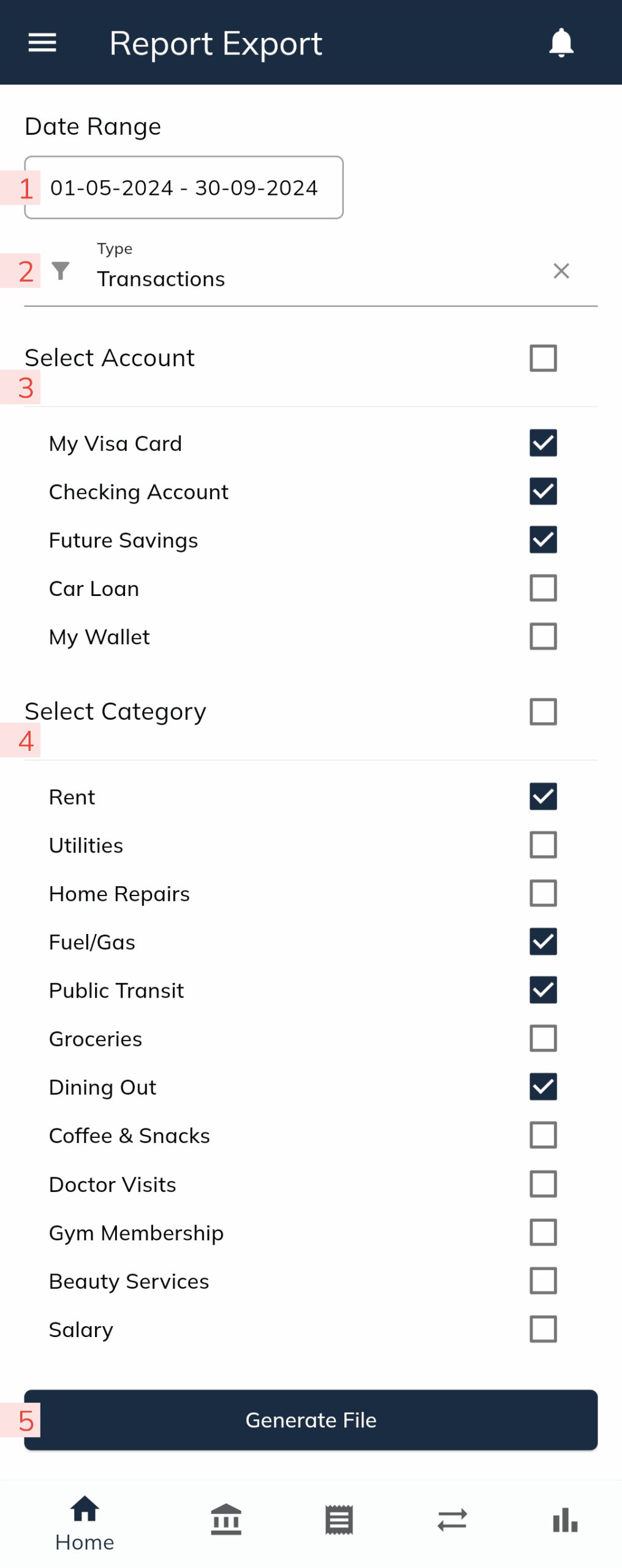
- Date Range
- Use this field to select the date range for the data you want to include in the report.
- Type
- Choose the type of data to include in the report. There are three options:
- All: Includes both transactions (income and expenses) and transfers.
- Transactions: Includes only income and expense data.
- Transfers: Includes only transfer data.
- Choose the type of data to include in the report. There are three options:
- Account Selection
- Select the accounts you want to include in the report.
- You can choose all accounts simultaneously or specify individual accounts to focus on.
- The report will only display the movements (income, expenses, and transfers) for the selected accounts.
- Category Selection(Appears only when “Transactions” is selected in Type)
- If you select Transactions as the report type, this field becomes available.
- Here, you can select the categories you want to include in the report.
- Note: This field does not appear when Transfers or All is selected as there are no categories associated with transfer data.
- Generate File
- Once you have made all your selections, click the Generate File button to create the PDF report.
- The generated PDF will open automatically. You can save it to your device, print it, or archive it for future reference.
By using the Report Export feature, you can quickly and efficiently create professional-grade reports tailored to your specific needs, making financial tracking and organization even more effective.