
How Can We Help?
Account Transactions Screen
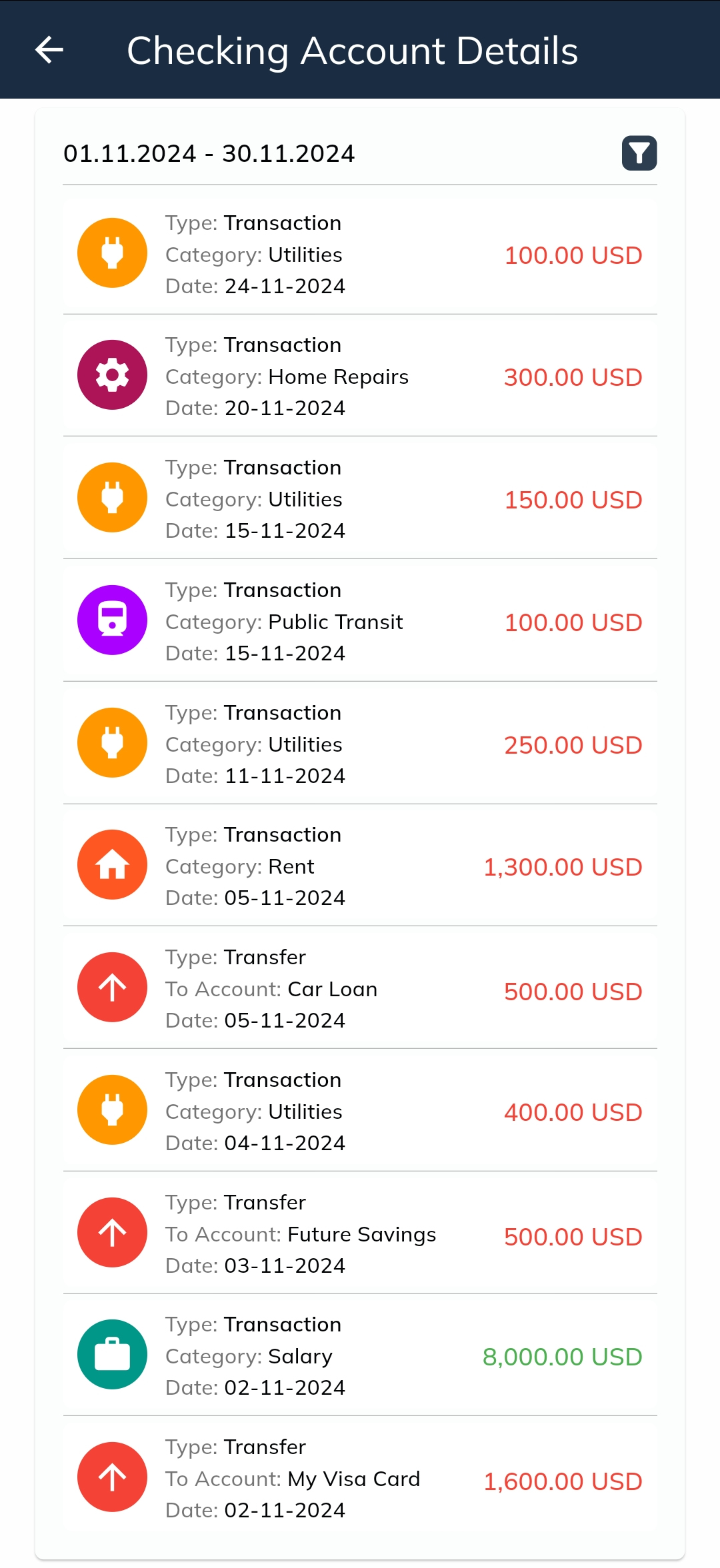
The Account Transactions Screen provides a detailed view of the transactions for a specific account. To access this screen, tap on the desired account listed on the Accounts Screen.
Features and Details
- Default Date Range
- By default, the screen displays the transactions for the last 1 month.
- Changing the Date Range
- To view transactions for a different date range:
- Tap the filter icon located next to the date information at the top of the screen.
- Select your desired date range using the calendar that appears.
- To view transactions for a different date range:
- Transaction Types Displayed
- Once filtered, all transactions for the selected date range are displayed, including:
- Income and Expense Transactions:
- Displays the transaction category, date, and amount.
- Transfer Transactions:
- Displays the source or destination account, date, and amount.
- Income and Expense Transactions:
- Once filtered, all transactions for the selected date range are displayed, including:
- Amount Colors
- Red Amounts: Represent expense transactions or outgoing transfers to another account.
- Green Amounts: Represent income transactions or incoming transfers from another account.
The Account Transactions Screen gives you a clear and organized view of all activities associated with a specific account, making it easy to analyze and track your financial transactions efficiently.