
How Can We Help?
Transfers Screen
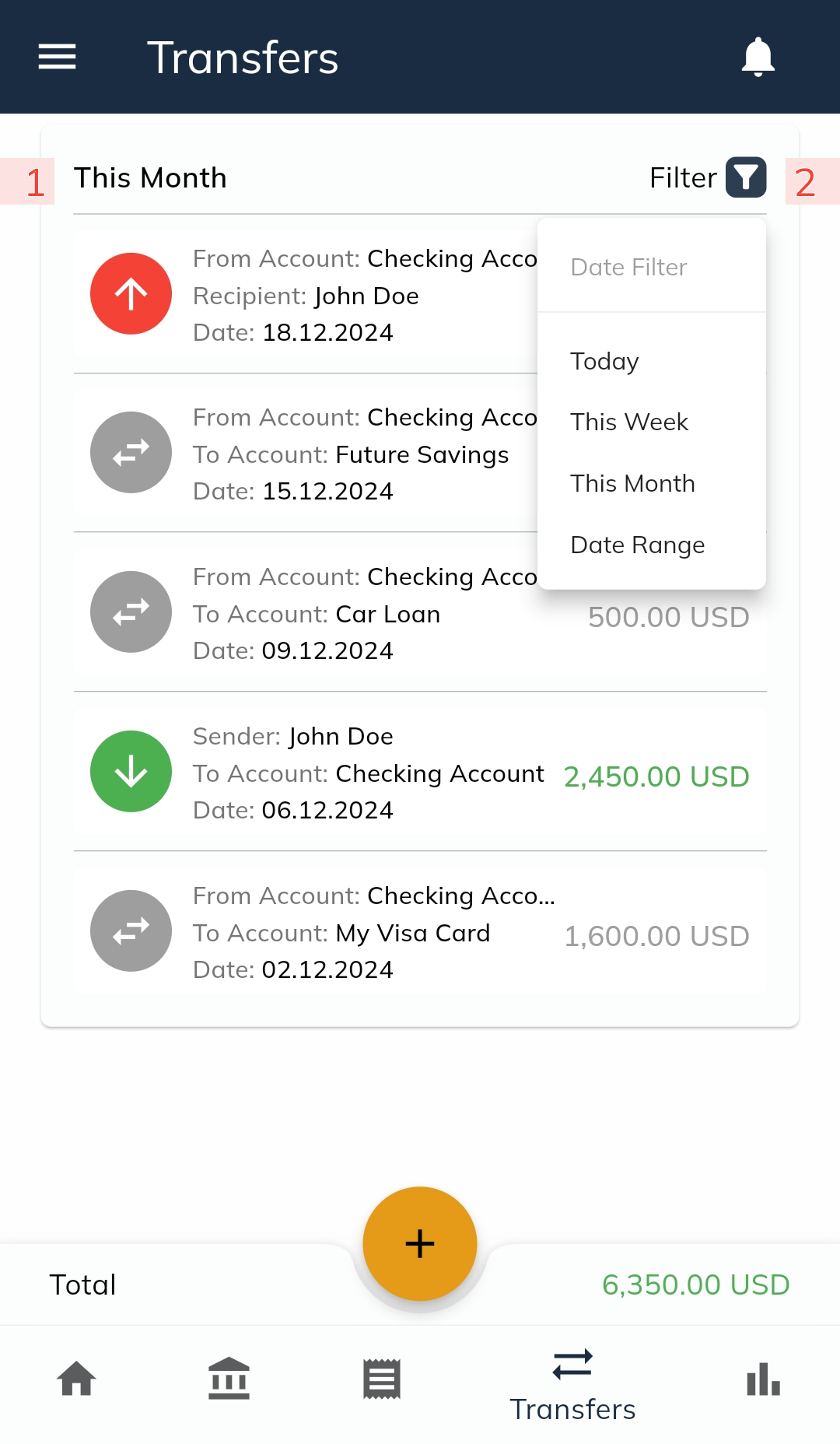
The Transfers Screen displays all transfer transactions recorded in the Finanzy app. You can access this screen by tapping the Transfers button in the bottom menu. Upon opening, you will see a screen similar to the one shown in the visual.
- Default View
- By default, the screen lists all transfer transactions for the current month.
- The header section (marked as 1 in the visual) displays the date range of the listed transactions.
- Filtering Transfers
- To change the listing options, tap the Filter button (marked as 2 in the visual).
- The filter menu provides the option to:
- Filter by Date Range: Opens a calendar to select a date range.
- You can select up to a maximum of 12 months.
- Filter by Date Range: Opens a calendar to select a date range.
- Transfer Types and Color Coding
- The listed transfers are categorized and displayed with specific icons and colors:
- Internal Transfers: Represented with a gray icon and a gray amount.
- External Transfers:
- Incoming Transfers: Shown with a green icon and a green amount.
- Outgoing Transfers: Shown with a red icon and a red amount.
- The listed transfers are categorized and displayed with specific icons and colors:
- Total Transfers Amount
- At the bottom of the screen, the Total Amount section displays the sum of all listed transfers.
- This total includes both incoming and outgoing transfers without distinguishing between them.
- Deleting a Transfer
- To delete a transfer, hold and swipe the transaction to the right.
- A confirmation window will appear. After confirming, the transfer will be deleted.
- Editing a Transfer
- To edit a transfer, hold and swipe the transaction to the left.
- This will open the Transfer Edit Screen, where you can update the details of the transfer.
The Transfers Screen is designed to provide a clear and organized overview of your transfer transactions. It offers intuitive filtering, easy-to-read visual indicators, and tools to manage, edit, or delete your transfer records seamlessly.